

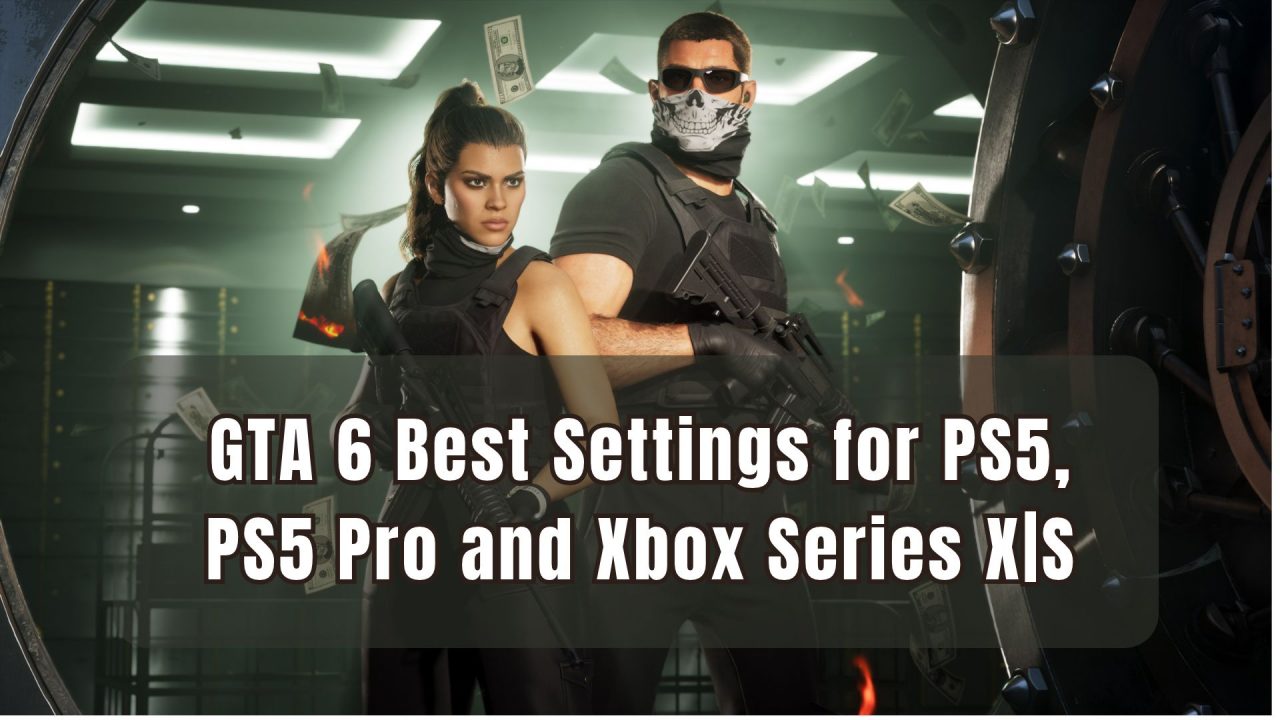
GTA 6 is now available on PS5, PS5 Pro, Xbox Series X, and Xbox Series S. It gives players plenty of control over the camera, aiming, interface, and visual effects, although the graphics options are more limited. Every console targets 30 FPS, and the current version has no Quality, Performance, or Balanced Mode.
The best GTA 6 settings will therefore help you reduce input delay, clean up the image, and make the controls feel better. They cannot unlock 60 FPS, though a few changes can make the fixed 30 FPS presentation easier to enjoy.
Does GTA 6 Have a Performance Mode?
Rockstar has confirmed that GTA 6 targets 30 FPS on every console. This applies to PS5, PS5 Pro, Xbox Series X, and Xbox Series S.
The developer chose this target to support Leonida’s crowded environments, traffic, characters, lighting, and other systems. There is currently no option for 40 FPS or 60 FPS.
PS5 Pro enhancements work automatically. The upgraded console uses PSSR for a cleaner reconstructed 4K image and adds ray-traced shadows. Players do not need to activate either feature through a separate graphics menu.
Here is how the four console versions compare:
| Console | Image and performance |
| PS5 Pro | Sharp reconstructed 4K image and the most stable 30 FPS performance |
| PS5 | Reconstructed 4K output with occasional frame-rate dips in busy scenes |
| Xbox Series X | Similar image quality and performance to the standard PS5 |
| Xbox Series S | Softer 1080p presentation with frequent drops below 30 FPS |
For platform details, editions, and other release information, read MMO Culture’s complete GTA 6 release guide.
Best GTA 6 TV and Console Settings
Start with your console and television before changing the game’s own options. This keeps the HDR calibration accurate and lowers the delay between your controller input and the action on screen:
| Setting | Recommended option |
| TV picture preset | Game Mode |
| Motion smoothing | Off |
| AI or Dynamic picture enhancement | Off |
| HGiG | On, if supported |
| Dynamic Tone Mapping | Off when using HGiG |
| Auto Low-Latency Mode | On or Automatic |
| HDR | On When Supported |
| VRR | On or Automatic |
| Resolution | Automatic on PS5; 4K UHD on Xbox Series X |
| 120 Hz output | Automatic on PS5; enable on Xbox if supported |
Rockstar’s official HDR guidance recommends Game Mode, an HDMI 2.1 connection, and disabled Smart, Dynamic, Adaptive, or AI picture processing. It also recommends HGiG on compatible televisions.
On PS5 and PS5 Pro, open Settings > Screen and Video > Video Output. Set HDR to On When Supported, then use Adjust HDR to complete the three calibration screens.
Xbox Series X|S players can find similar options under Settings > General > TV & Display Options. Enable HDR10, Auto Low-Latency Mode, and Variable Refresh Rate if the television supports them. After that, run Calibrate HDR for Games.
A 120 Hz output will not increase GTA 6 beyond 30 FPS. It may help frame delivery on a compatible Xbox display, so leaving it enabled is still worthwhile.
Best GTA 6 In-Game Display Settings
The current version includes visual-effect and accessibility options instead of traditional graphics presets. These values provide a comfortable starting point:
| In-game setting | Recommended value |
| Brightness Calibration | Set the symbol to barely visible |
| Motion Blur Strength | 1 or 2 |
| Player Status Effects Intensity | 3-5 |
| Hit Effects Intensity | 3-5 |
| Awareness Effects Intensity | 3-5 |
| Flashbang | Dim |
| Brightness Reduction | On if bright effects bother you |
| Cinematic Kill Shot Frequency | 0 or 1 |
| Cinematic Vehicle Crash Frequency | 0 or 1 |
| Follow Roll | Off if camera tilting causes discomfort |
Motion Blur Strength defaults to 3. Reducing it to 1 or 2 makes fast driving and camera movement clearer, while a small amount of blur helps soften the 30 FPS presentation. Setting it to zero produces the sharpest image, though camera turns may look less smooth.
Cinematic kill and vehicle crash shots can briefly take control of the camera. Lower their frequency if you prefer an uninterrupted view during combat and driving.
Best GTA 6 Controller and Aim Settings
The default controller setup works well for story missions, but the deadzone and camera values may need a small adjustment.
Use these settings as a starting point:
- Targeting: Partial
- Aim Assist Strength: 4
- Aim Response Curve: Standard
- Horizontal Look Sensitivity: 6
- Aim and Acceleration sliders: Start at 7
- Left Stick Deadzone: 2-4
- Right Stick Deadzone: 2-4
- Drive-By Assist: On
- Quick Draw: On
Lower deadzones make aiming and movement feel more responsive. Start at 2 or 3 if your controller is in good condition. Increase the value one step at a time if the camera or character moves without input.
PS5 players should also keep the DualSense haptics and adaptive triggers enabled at first. GTA 6 uses them for weapons, vehicles, road surfaces, weather, and other environmental effects. You can reduce their strength later if the resistance becomes tiring. Rockstar also supports Tempest 3D Audio for more accurate sound positioning.
Which Console Has the Best GTA 6 Performance?
PS5 Pro currently provides the best console version. Technical testing found a near-flawless 30 FPS during regular play, along with a cleaner image through PSSR. Standard PS5 and Xbox Series X remain close, although both can dip during fast traversal, heavy combat, and large explosions.
Xbox Series S makes the largest compromises. It targets 30 FPS, but driving and combat can push it into the mid-to-upper 20s. More demanding scenes may fall closer to 20 FPS, and no in-game setting can fully remove those drops.
Digital Foundry provides a closer look at the differences:
The best GTA 6 settings come down to a properly calibrated display, lower motion blur, comfortable camera movement, and responsive controller values. Once those are set, PS5 Pro offers the strongest experience, while PS5 and Xbox Series X still provide a solid trip through Leonida.
Find more useful settings, walkthroughs, and gameplay advice through MMO Culture’s gaming guides.