

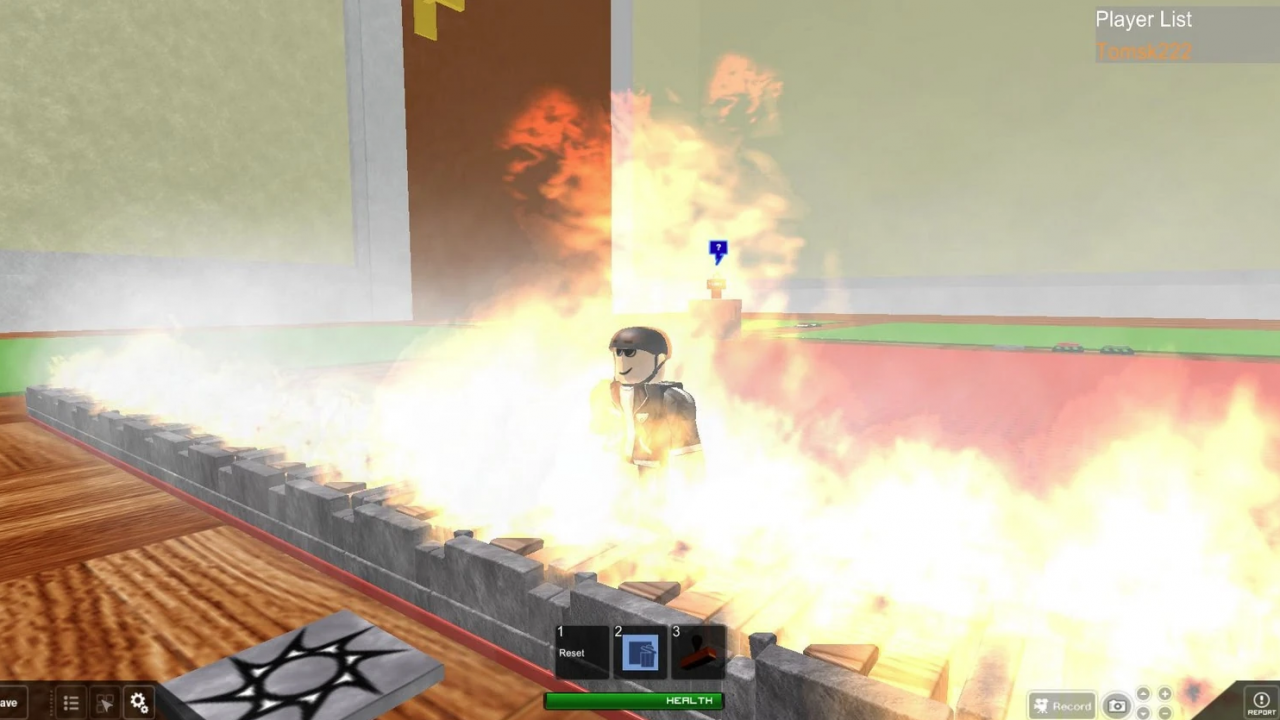
Roblox lag rarely has one cause. Sometimes your connection drops packets, sometimes your GPU chokes, and sometimes the experience itself is badly built. This guide walks through the Roblox lag fixes that actually work, in the order you should try them. You will learn how to read your FPS and ping numbers. You will also know which settings to change, and when the fault is Roblox’s.
Best Things to Try First for Roblox Lags and Crashes
| Fix | Time needed | Helps with |
| Switch to wired or 5 GHz | 5 minutes | Ping, packet loss |
| Pause downloads and streams | 1 minute | Ping spikes |
| Turn off Graphics Quality – Auto | 1 minute | FPS, stutter |
| Raise Maximum Frame Rate | 1 minute | FPS on high-refresh monitors |
| Close background apps | 2 minutes | FPS, system lag |
| Open UDP 49152-65535 | 10 minutes | Connection failures |
| Rejoin for a new server | 1 minute | Ping, server-side stutter |
| Update GPU drivers | 15 minutes | FPS, crashes |
Know Which Type of Lag You Have
Roblox Support splits slowdowns into three buckets, and each one needs a different fix. Network lag hits when your connection to Roblox is slow or unstable. Other players warp around, and your actions take ages to land. Graphics lag comes from a device that struggles to render the experience, which produces choppy or stuttering visuals. System lag happens when other high-power apps eat the resources Roblox needs.
Diagnosing the type first saves you an hour of pointless tweaking. [Internal Link: MMO Culture Roblox guides hub] Lowering graphics quality does nothing for a 900 ms ping. A wired connection will not rescue a five-year-old integrated GPU.
| What you see | Most likely cause | Where to start |
| Players teleport and rubber-band | Network lag | Connection fixes below |
| Your own camera stutters while panning | Graphics lag | Graphics and client settings |
| Smooth at first, then drops after 10 minutes | System lag or heat | Background apps and mobile section |
| Everyone in the server complains at once | Server-side problem | When the lag is not your fault |
| Long loading screens, “Could Not Connect” errors | Firewall or bandwidth | Connection fixes below |
Check Your FPS and Ping Before You Change Anything
You cannot fix what you cannot measure. Roblox ships several built-in readouts, and all of them beat guessing.

- Shift + F5 brings up the debug stats summary, including your live frame rate.
- Ctrl + Alt + F7 opens the Performance Stats toolbar. It reports memory consumption, CPU, GPU, network data sent and received, and ping time.
- Shift + F3 displays network debug stats, which includes your data ping.
- F9 opens the Developer Console, useful when you want server-side numbers.
You can also flip Performance Stats on from the in-game menu under Settings. That helps when your function keys control volume or brightness.
Network Ping Versus Data Ping
These two numbers look similar and mean different things. Network ping measures the round trip from your packet leaving the server’s reply arriving. It mostly reflects the physical distance between you and the server. You cannot negotiate with geography.
Data ping measures the round trip through Roblox’s replication system. It also counts queue time and retransmissions of lost packets. Data ping always sits equal to or above network ping. A large gap between the two usually points at the experience, not your router.
Roblox Lag Fixes for High Ping and Dropped Connections
Work through these in order. Each one takes a few minutes at most.
Get Off Wi-Fi If You Can
A cable removes interference, congestion, and half the variables in one move. Roblox Support suggests ruling out wireless by switching to a wired connection where that option exists. If Ethernet is impossible, move to the 5 GHz band and sit closer to the router.
Free Up Your Bandwidth
Roblox recommends a minimum of 4 to 8 Mb/s for a single-use household, and larger households need more headroom. That number falls apart fast when someone starts a 4K stream. Pause downloads, cloud backups, and console updates, then rejoin.
Open the Right Ports and Clear the Firewall
This is the fix most players skip, and it resolves a surprising share of “Could Not Connect” reports. Roblox uses UDP ports 49152 through 65535, and keeping that range open lets the client talk to your router properly. Security software often blocks programs by default, so Roblox may need an explicit exception.
Ad-blocking browser extensions can also stop an experience from loading fully, so disable them while you test.
Rejoin for a Better Server
Roblox assigns you a server when you join, and you have no region picker. Leaving and rejoining puts you on a different instance, which sometimes drops your ping by a third. Popular experiences with private server options give you an even more stable route, since the player count stays low.
Be Careful With VPNs and “Ping Reducer” Apps
A VPN adds another hop between you and the server. Occasionally that route is cleaner than your ISP’s default path, and your ping falls. More often it rises. Test with the VPN off first, and treat any tool promising guaranteed latency cuts with suspicion.
Roblox FPS Fixes: Graphics and Client Settings
Frame rate problems live on your device, so these settings matter more than anything network related.

Take Graphics Quality Off Auto
Roblox’s automatic mode reacts slowly to heavy scenes. Open the in-experience menu with Esc and go to Settings. Toggle Graphics Quality Auto off, then lower the level yourself. Lower levels cost some visual fidelity, but your device works less and runs the experience better.
Levels 1 to 3 suit older laptops and budget desktops. Levels 4 to 6 hold up well in most social and simulator experiences.
Raise the Maximum Frame Rate Cap
Plenty of players still run at 60 FPS on a 144 Hz monitor without realizing it. Roblox added a native setting for this in May 2024. The Maximum Framerate option offers Default (60 FPS), 60, 120, 144, and 240 FPS. It launched on Windows first, with Mac support planned later. The default client cap sits at 60 FPS, and Windows players can raise it to 240.
Roblox recommends its own setting over external framerate unlockers. Those tools poke at an internal flag that was never meant to be public, and it can change without notice. That advice is worth following, especially with third-party launchers floating around.

Close What You Are Not Using
If lowering graphics quality changes nothing, look at your other high-power apps. Close anything you do not need right now. Chrome with 40 tabs, Discord streaming, and a game launcher updating in the background will all tax the same hardware.
Update Drivers and Reinstall the Client
Graphics drivers age badly, and a six-month-old driver can cost you real frames. Update through your GPU vendor’s app first. If the client still misbehaves, reinstall Roblox, which Roblox Support lists as a final troubleshooting step for persistent connection issues.
Check That Your Hardware Clears the Bar
Roblox publishes modest minimums for PC:
- DirectX 10 feature-level graphics support
- A processor from 2005 or later at 1.6 GHz or above
- At least 1 GB of memory on Windows 10 or 11
- 300 MB of free storage
Roblox recommends a desktop under five years old with a dedicated card. Laptops should be under three years old with integrated graphics.
Those minimums are ancient, so clearing them does not guarantee smooth play. Treat them as a floor, not a target.
Roblox Lag Fixes for Mobile Players
Phones have their own rules, and several PC fixes do not apply here. Roblox needs Android 8.0 or higher with OpenGL ES 3.0 support, or iOS 14 and above on iPhone and iPad. Devices that fall short get a skippable warning about “rough” performance. Very old hardware gets an unskippable block instead.
Roblox suggests switching from mobile data to Wi-Fi when problems appear. 3G and 4G connections are simply less stable.
Beyond that, a short checklist covers most mobile slowdowns:
- Kill background apps. Social feeds and music players compete for RAM and thermal headroom on a small chassis.
- Turn off battery saver. Power-saving modes throttle the CPU and GPU on purpose, which caps your frame rate hard. [Internal Link: MMO Culture mobile optimization tips]
- Let the phone cool down. Sustained sessions heat the chipset, and thermal throttling explains most “fine for ten minutes, terrible after that” complaints.
- Free up storage. A nearly full device slows asset caching and lengthens load screens.
- Lower graphics in Settings. The same manual quality slider exists in the mobile client.
Frame Limit: Roblox mobile version remains capped at 60 FPS regardless of your screen’s refresh rate. A 120 Hz phone will not push 120 frames in Roblox today.
Tried Everything but Roblox Lag Still Persists? Check when it’s not your Fault
Sometimes you have done everything right and the issue still persists. In such situations, you can perform these 3 checks to ensure it’s not your fault:
- Test a second experience. Join something lightweight and well-optimized. Smooth play there points at the first experience, not your setup.
- Watch for a data ping spike. When a server generates replication data faster than the network can carry it, that data queues up. Queued data inflates your ping. A degraded server heartbeat raises latency too, since each frame takes longer to process. Neither is something you can patch from your end.
- Check platform status. Roblox publishes live service health continuously. If the page flags problems with joining experiences, stop troubleshooting and wait it out.
Final Thoughts
Assess first, then fix. Pull up Performance Stats and find the ugly number. Try to fix that side only. Network problems respond to cables, bandwidth, and firewall rules. Frame rate problems respond to graphics settings, a higher frame cap, and a lighter background load.
If both numbers look healthy and the game still feels wrong, blame the game or the client itself. A badly optimized game or a struggling server explains the rest. Move on to another game rather than rebuilding your network for it. Before installing any third-party booster, remember one thing. Roblox’s own settings now handle the frame cap natively, which removed the main reason those tools existed.
Want more such helpful tips for your favourite games? Read our latest tips and guides to elevate your gameplay to the next level!