

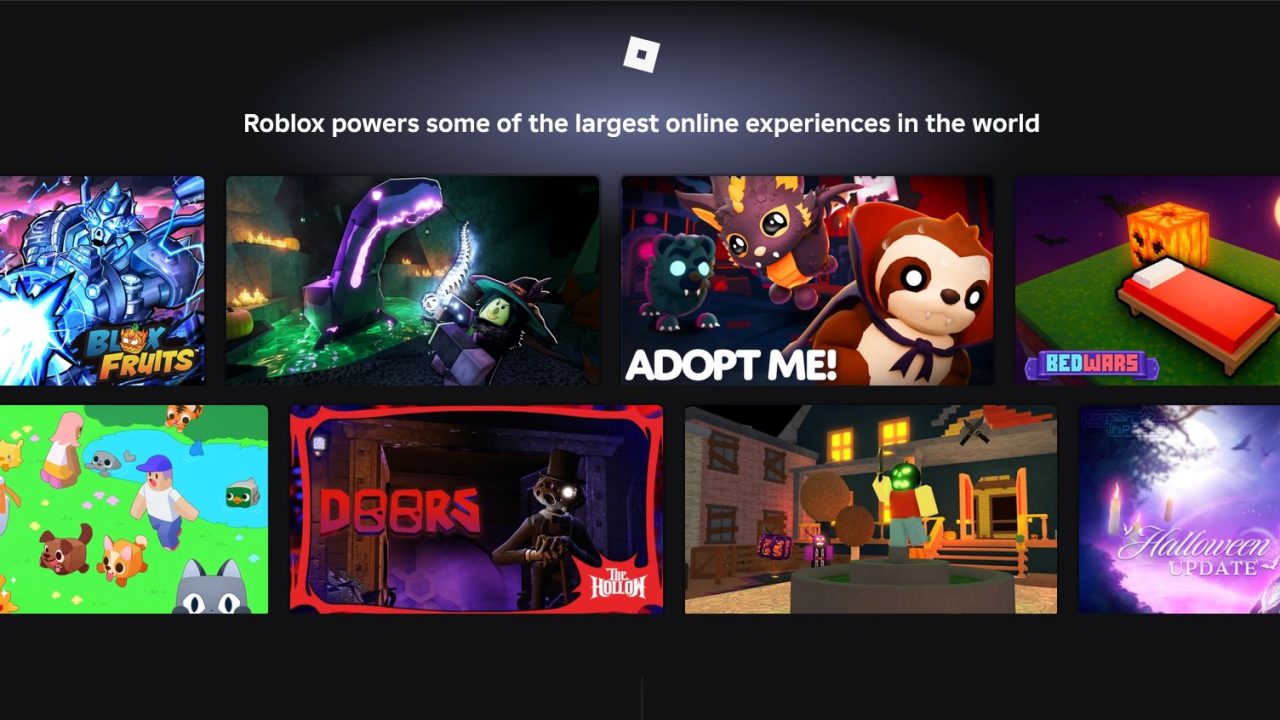
Roblox brings together thousands of user-created games, from action-packed adventures to relaxing simulators and social experiences. Playing on a laptop gives you the benefit of a larger screen, keyboard controls, and a mouse for more precise movement and camera handling. However, the installation process differs depending on whether you use Windows, macOS, or ChromeOS. This guide explains how to install Roblox on each platform and adjust your settings for smoother gameplay.
Can Your Laptop Run Roblox?

Before downloading Roblox, check whether your laptop meets the platform’s basic requirements. The game can run on relatively modest hardware, although more capable components may provide a smoother experience in demanding games.
| COMPONENT | BASIC REQUIREMENTS | RECOMMENDED |
| Operating system | Windows 10/11 (64-bit), macOS 10.13 or later, or ChromeOS 53+ with Google Play support | Same |
| Processor | A processor running at 1.6 GHz or faster | A modern quad-core CPU |
| RAM | At least 1 GB on Windows | 8 GB for more headroom when multitasking |
| Graphics | DirectX 10-capable graphics on Windows | Modern integrated graphics or a dedicated GPU |
| Storage | At least 300 MB of free space | 1 GB or more free space |
| Internet | Approximately 4–8 Mbps or faster | Same |
The recommended column is a practical target rather than an official minimum. Your experience will also depend on the individual game, graphics settings, and other applications running on your laptop.
Method 1: Install Roblox on a Windows Laptop
Windows users can install Roblox through the official website or the Microsoft Store. Both methods provide access to Roblox experiences, so choose whichever installation method suits you best.
Option A: Install Roblox from the Official Website
- Open Chrome, Firefox, or Microsoft Edge and visit roblox.com.
- Sign in to your existing account or create a new one.
- Browse the games available on the platform and open an experience you want to play.
- Select the green Play button. When prompted, choose the option to download and install Roblox.
- Open the downloaded installer and follow the instructions to complete the setup.
- Return to the game’s page and click Play again. Approve the browser prompt to open Roblox if one appears.
- Once the installation is complete, you can launch supported experiences through the Roblox website.
Option B: Install Roblox from the Microsoft Store
- Open the Microsoft Store from the Windows Start menu.
- Search for Roblox and select the official application.
- Click Get or Install, depending on the option displayed.
- Wait for the installation to finish, then launch Roblox from the Start menu.
- Sign in to your account and choose an experience to play.
This method is convenient if you prefer managing Roblox like other Windows applications instead of starting the installation through a browser.
Method 2: Install Roblox on a MacBook
Roblox works on supported MacBooks, including MacBook Air and MacBook Pro models. You can download the application through the Roblox website using a supported browser.
- Open Safari, Chrome, or Firefox and navigate to roblox.com.
- Sign in to your Roblox account.
- Open any experience and click the green Play button.
- Follow the download prompt to obtain the Roblox installer.
- Open your Downloads folder and launch the downloaded file.
- Follow the on-screen instructions to complete the installation.
- Return to the website and launch the experience again. You can also open Roblox from your Applications folder or Dock once the app is installed.
If a game does not open after installation, restart your Mac and try launching Roblox again.
Method 3: Install Roblox on a Chromebook
Chromebooks use the Android version of Roblox through the Google Play Store rather than the standard Windows or macOS desktop installer. Your Chromebook must support Google Play, and the store must be enabled.
- Open your Chromebook’s Settings.
- Navigate to the Apps section and check whether Google Play is available and enabled.
- Open the Google Play Store.
- Search for Roblox and select Install.
- Launch Roblox from the Chromebook Launcher.
- Sign in to your account and open an experience.
Keep ChromeOS updated to help avoid compatibility problems. Some school-managed Chromebooks restrict Google Play or prevent users from installing applications.

How to Improve Roblox Performance on a Laptop
If Roblox feels sluggish, suffers from low frame rates, or stutters during gameplay, try the following adjustments:
Reduce Graphics Quality
Lower graphics settings can improve performance on laptops with integrated graphics or limited processing power.
- Enter a Roblox experience and press Esc to open the in-game menu.
- Navigate to Settings.
- Change Graphics Mode from Automatic to Manual.
- Reduce Graphics Quality to around one to three bars.
- Return to the game and check whether movement and frame rates have improved.
Increase the quality gradually if performance remains smooth. The ideal setting depends on the experience and your laptop’s capabilities.
Use an External Mouse
A built-in trackpad is sufficient for basic movement, but a USB or compatible wireless mouse can make camera control and aiming easier. This can be especially helpful in games that require quick turns or precise movements.
Chromebook note: Roblox’s Chromebook support guidance warns that the Android app does not work with Bluetooth mice or other Bluetooth pointing devices. Check compatibility before buying a peripheral specifically for Chromebook gameplay.
Close Unnecessary Applications
Web browsers with many open tabs, video streams, and background applications can use substantial memory and processing power. Close anything you do not need before starting Roblox, especially on laptops with limited RAM.
Connect Your Laptop to Power
Some laptops reduce performance when operating on battery power. Plugging in the charger and selecting an appropriate performance mode in your laptop’s power settings may help maintain steadier frame rates.
Check Your Network Connection
Slowdowns are not always caused by your laptop. If the game repeatedly freezes while your character is moving or other players stop responding, test your internet connection. Moving closer to your router, switching to a more stable network, or using Ethernet where available may help reduce connection problems.
Installing Roblox on a laptop is straightforward once you choose the method that matches your operating system. For a smoother experience, keep your system updated, lower graphics quality if necessary, close unnecessary background applications, and use a stable internet connection.
Read More
Looking for more game strategies and guides? Explore our full collection of tips & game guides to level up your gameplay!